

How to Simplify Smart Home Automation
Table of Contents
- Audit Your Current Smart Home Setup
- Simple Home Automation Ideas for Everyday Tasks
- Smart Home Setup for Beginners: Choose One Hub and Stick With It
- Smart Home Device Compatibility: Standards and Interoperability
- Build Smart Home Automation Routines That Work
- Troubleshoot and Measure What Actually Works
- Frequently Asked Questions
Last Updated: October 11, 2026
Audit Your Current Smart Home Setup
The first step to simplify smart home automation is understanding what you already have. Most people accumulate devices without a plan, ending up with multiple apps, incompatible devices, and overly complicated routines.

List every connected device: brand, function, and controlling app. Check your phone for all smart home apps installed, most people are surprised to find six or seven running simultaneously.
Identify devices used regularly. Unused devices drain Wi-Fi, consume power, and add mental load, remove them.
Here's what to look for in your audit:
- Devices that require separate apps to control
- Devices that don't work with your voice assistant
- Routines that require multiple steps to activate
- Smart devices that conflict with each other
- Connections that drop frequently or respond slowly
Most setups fail by prioritizing more devices over seamless integration. The goal is eliminating friction, not accumulating gadgets.
Simple Home Automation Ideas for Everyday Tasks
Start with Lighting and Plugs
Smart lighting is the easiest entry point to simplify smart home automation, lights are used multiple times daily, creating immediate value.
The Creative Home LED Smart Bluetooth Speaker E27 Bulb Light from Mayon Finds replaces a standard bulb with music, color control, and dimming. It screws into any E27 socket without rewiring, offers RGB and white modes, delivers 600 lumens, and lasts 50,000 hours.
The WiFi Smart Plugs 2-Pack from Mayon Finds turns any outlet smart without a hub. They work with Alexa and Google Assistant, support schedules, and monitor energy usage. At $24 for two, they're among the cheapest automation options.

Start with one room: automate frequently-used lights and add one smart plug. Live with it for two weeks. If it eases your routine, expand; if not, adjust before adding more.
Add Motion Sensors and Occupancy Triggers
Motion sensors detect entry and activate lights automatically, turning off after a set delay, eliminating manual control.
Occupancy triggers work best in bathrooms, hallways, and entryways. Bedrooms are trickier due to nighttime false triggers.
Motion sensors reduce friction but aren't perfect, they occasionally false-trigger and miss stationary motion. Accept these limits upfront.
Place sensors strategically (hallway sensors cover more area than corner placement). Test range and sensitivity before finalizing; most allow adjustment of light duration after motion stops.
Automate Climate Control and Energy
Smart thermostats learn your schedule and reduce energy waste. Set two schedules (workdays and weekends) and refine based on comfort and bills. Real savings require consistency, if you adjust manually multiple times daily, a smart thermostat won't help. Set it and let it run for noticeable energy and comfort improvements.
Smart Home Setup for Beginners: Choose One Hub and Stick With It
A smart home hub is the central brain connecting all devices, enabling control through one interface instead of separate apps.
The Graffiti Smart Central Control Home Panel from Mayon Finds provides an 8-inch IPS display as a physical control point, with Wi-Fi and Ethernet options, recessed installation, and RJ45, RS485, and audio outputs.
Pick one hub platform and commit to it. Device compatibility becomes exponentially easier when everything speaks the same language, you avoid app-specific devices and get consistent voice control. If starting fresh, Amazon Alexa or Google Home are most practical; both work with thousands of devices and offer affordable entry points. If you own devices from different ecosystems, consolidate slowly by replacing devices as they fail.
Smart Home Device Compatibility: Standards and Interoperability
Device compatibility determines whether your smart home feels seamless or frustrating. Identical-looking devices may operate on different wireless standards, preventing unified control.
Understanding Wireless Standards and Their Trade-Offs
Wi-Fi devices connect directly without a hub and work immediately, but each consumes bandwidth and too many can slow your network. Use Wi-Fi for frequently-used devices and those needing fast response (cameras, displays).
Zigbee and Z-Wave devices require a hub but use less bandwidth and mesh to extend range. Ideal for sensors and switches not needing real-time response. Trade-off: requires compatible hub and slightly more complex setup.
Thread is a newer standard offering mesh networking over existing Wi-Fi, eliminating separate hubs in some cases. Less common and more expensive, but worth monitoring for new systems.
Avoid Bluetooth-only smart home devices, range is limited and devices can't mesh. Use only as secondary controls for Wi-Fi or Zigbee primaries.
How to Verify Compatibility Before You Buy
Check 1: Confirm the device works with your chosen hub or platform. Search the product page for "compatible with" or "works with." Look for explicit hub brand mentions (Amazon Alexa, Google Home, Apple HomeKit, Samsung SmartThings). "Works with Alexa" isn't enough, verify if it requires the Alexa hub or works with any compatible hub you own. Check the device's wireless standard (Wi-Fi, Zigbee, Z-Wave, Thread, Bluetooth) and cross-reference against your hub's supported protocols.
Check 2: Verify the device uses an open standard, not a proprietary app. Brand-specific apps indicate proprietary protocols that lock you into one brand and prevent integration with other platforms. Avoid proprietary-only devices unless they're the only option for a specific function.
Check 3: Test one device before buying multiples. Purchase a single device, verify it works with your hub and automation app, run a simple routine, and confirm it stays connected for 48 hours before buying more.
What Happens When Standards Conflict or Devices Fail
If a device won't add to your hub: Reset to factory settings (usually 10-second button press) and try again. If it fails, the device is incompatible, return it and choose one that explicitly supports your hub's standards.
Graffiti Smart Central Control Home Panel & Smart Home Hub →
If a device keeps disconnecting: Wi-Fi devices disconnect when they're too far from your router or when your network is congested.
If your hub goes offline: All devices connected through that hub become unavailable, even if the devices themselves are powered on and connected to Wi-Fi. This is the most common failure mode.
If your internet connection fails: Hub-based systems require internet for app commands, but local voice and physical controls often work. Wi-Fi devices stop responding entirely. Zigbee and Z-Wave devices may work locally depending on hub design, check documentation.
Building a Resilient Multi-Standard Setup
The most reliable smart homes intentionally mix standards. Start with one hub and standard, add Wi-Fi devices for fast-response functions, and add Thread devices as they become available. This diversity ensures if one standard fails, others keep working. Document your setup (device, standard, hub, room) to diagnose failures quickly.
Build Smart Home Automation Routines That Work
Create Routines for Morning and Evening
A routine is a single command triggering multiple actions (e.g., "Good morning" turns on lights, starts coffee, reads news). Start with one simple routine at a time of day when automation helps most. Build step-by-step, testing each action before adding the next. Keep routines to 3-5 actions, complex routines become unreliable.
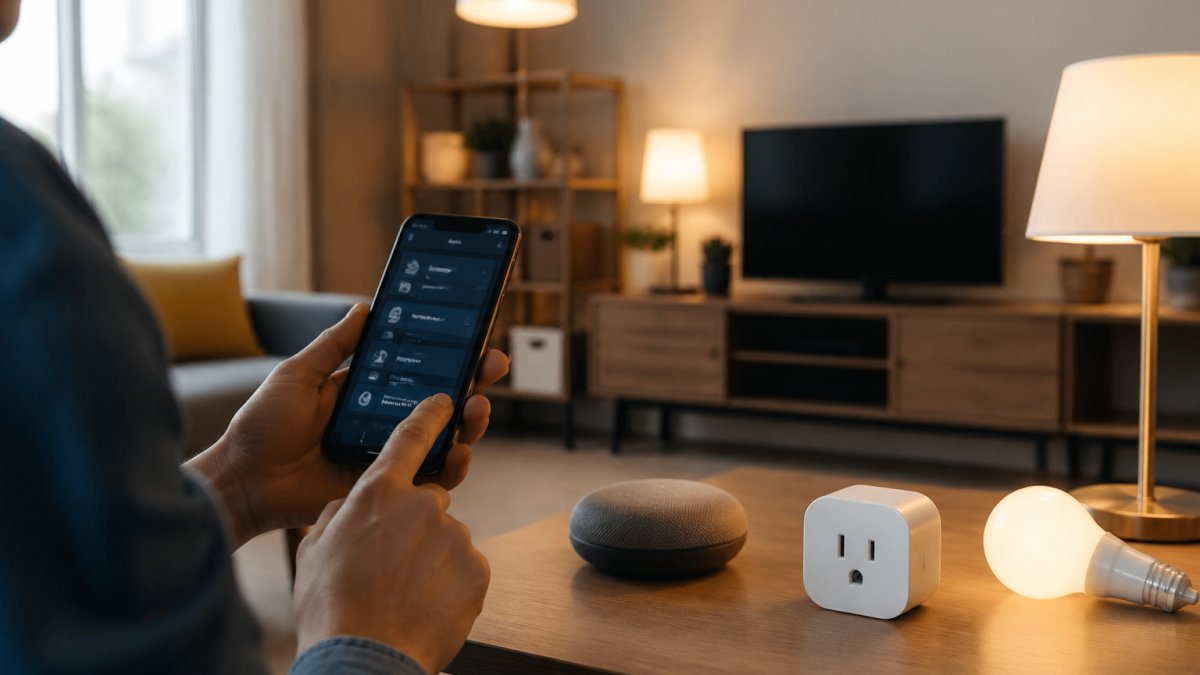
Use Voice Commands and One-Button Control
Voice control removes friction, say one sentence instead of opening apps and tapping buttons. One-button controls work similarly. The best automation feels invisible: you say a command and things happen.
Troubleshoot and Measure What Actually Works
Systematic Troubleshooting by Failure Type
Device won't respond in the app or to voice commands: Check if powered on and connected to Wi-Fi or hub. If listed as "offline," restart the device (unplug 10 seconds). Restart your hub or router and wait two minutes.
A routine runs at the wrong time or doesn't run at all: Check the routine's schedule (time and days). Manually trigger each action to confirm devices respond. If an action fails, fix that offline device first.
Voice commands don't work, but the app does: Confirm your voice assistant device is powered on and connected to Wi-Fi.
Wi-Fi devices keep disconnecting: Wi-Fi devices are sensitive to signal strength and network congestion. Check your router's signal strength in the room where the device is located.
Your hub is offline: This is the most serious failure because all devices connected through the hub become unavailable. First, check if your internet connection is working by testing a computer or phone on Wi-Fi.
Graceful Failure: Maintaining Manual Control When Automation Breaks
The best smart home setups degrade gracefully. When something fails, you don't lose all control, you lose automation but keep basic manual control.
Ensure every room has at least one Wi-Fi device (plug, light, or display) independent of your hub. When your hub goes offline, you can still control Wi-Fi devices directly through their app or voice assistant, maintaining basic control.
For critical functions (heating, cooling, security), keep manual overrides accessible. Smart thermostats should have physical dials, smart locks should have physical keys or keypads, and smart cameras should have local storage (microSD) for offline recording.
Document manual overrides, write down physical controls for each device. You'll need this in a power outage or internet failure.
Measuring Whether Automation Actually Simplifies Your Life
More devices and routines don't equal a simpler home. Use concrete metrics to measure if automation is actually working.
Metric 1: Time saved per day. Track a routine for one week before automation. Time it again after setup.
Metric 2: Number of manual steps eliminated. Count actions before and after automation. If manual takes 6 steps and automation takes 1, it's working.
Metric 3: Reliability and uptime. Track failures. If a routine fails more than once weekly, it's unreliable. Reliable automation should work 95%+ of the time. If below that, remove unreliable devices or routines.
Metric 4: Energy use and cost. Check your electric bill before and after automation. If your bill dropped 10-15%, automation is delivering value. If no change, review and adjust thermostat schedules.
Metric 5: Number of apps and devices you actively use. Count apps before and after. If you went from 7 apps to 2, you've reduced complexity.
When to Remove Automation
Remove devices or routines that don't meet your metrics, they're just clutter. Every three months, review: Did I use this device? Did this routine run successfully? Did this automation save time? If no, remove it. Simplification is ongoing, not one-time.
The most reliable smart homes aren't those with the most devices, they're ones where every device serves a clear purpose, works consistently, and makes life easier.
Frequently Asked Questions
I have smart devices from different brands already. Will they work together with smart home device compatibility?
Most modern smart devices work together through voice assistants like Alexa or Google Assistant, or through Wi-Fi standards like 802.11n. Check whether your existing devices support the same hub or voice platform. A central control panel, like the Graffiti Smart Central Control Home Panel, can help coordinate devices across brands if they share compatible protocols. Before adding new devices, verify they support your existing ecosystem, this prevents compatibility headaches later.
What's the easiest way to start with smart home setup for beginners?
Start with one category: smart plugs or smart lighting. WiFi smart plugs like the 2-pack from Mayon Finds ($24) require no hub and work immediately with Alexa or Google Assistant. Add motion sensors next to trigger lights automatically. Avoid mixing brands early, pick one platform (Alexa, Google Home, or Apple) and buy devices that explicitly support it. This keeps setup simple and prevents frustration when devices don't communicate.
How do I know if smart home automation is actually making my life simpler?
Track what you're automating and whether you still use manual control. If you're still reaching for light switches instead of using routines, that automation isn't working. Good automation reduces daily decisions, like lights turning on when you arrive home, or coffee makers starting on schedule. If you find yourself troubleshooting more than enjoying convenience, simplify by removing that automation and trying a different approach.
What are simple home automation ideas I can implement this week?
Set up a basic morning routine: lights gradually brighten 10 minutes before your alarm, coffee maker turns on via a smart plug, and your thermostat adjusts temperature. In the evening, create a bedtime scene that dims lights, locks doors, and turns off connected appliances. Use motion sensors in hallways or bathrooms to automate lights, no switch needed. These require minimal setup and deliver immediate, visible convenience.