

Automate Your Home Without Apps: A Setup Guide
Table of Contents
- Why Automate Your Home Without Apps
- Physical Controls for Smart Home Devices
- Home Automation Schedules and Timers
- Smart Home Automation with Motion Sensors
- Local Home Automation Without Internet
- Building Your App-Free Setup: Step by Step
- Common Mistakes to Avoid
- Frequently Asked Questions
Last Updated: October 15, 2026
Why Automate Your Home Without Apps
Learning how to automate home without apps sounds impossible at first. Most smart home setups push you toward constant phone interaction, checking notifications, triggering routines, managing schedules through an app interface.
True automation means your home runs on its own. Physical controls, schedules, sensors, and local hubs handle the work. You set things up once, then forget about them. No app checking. No notifications. No dependency on cloud services staying online.
At Mayon Finds, we've built our smart home collection around devices that let you automate home without apps. When you automate your home without apps, you gain something more valuable than convenience: you gain reliability. Your heating adjusts on schedule whether your phone is charged or not.
This guide walks you through the approach. We'll show you the devices that make app-free automation possible, the strategies that actually work, and the step-by-step setup path that doesn't trap you in app dependency.
Physical Controls for Smart Home Devices
The foundation of app-free automation is simple: physical controls that work without a phone.
A physical switch remains the most reliable control method. Smart devices should respond to physical buttons and switches the same way traditional devices do. When you flip a switch, the light turns on. Immediately. No app required. This redundancy matters more than most people realize.
Motion sensors and occupancy detection take this further. Instead of you triggering actions, the sensors do it for you. A motion sensor in your hallway detects movement and automatically turns on lights.
The WiFi Smart Plugs from Mayon Finds ($24.00 for a 2-pack) exemplify this approach. They support physical button control on the plug itself, plus voice commands if you want them, plus app control as a backup option.

Key control methods to prioritize:
- Physical buttons on the device itself
- Wall-mounted switches that trigger automation
- Motion and occupancy sensors for hands-free operation
- Voice commands as optional convenience, not required interaction
- Manual overrides that always work, even during failures
The best smart home devices offer all of these. Devices that force you into app control are devices you should avoid.
Home Automation Schedules and Timers
Schedules are where real automation happens. Once you set a schedule, your home follows it without any input from you.
A schedule tells a device when to turn on and off based on time of day. Your thermostat runs a heating schedule during winter mornings and evenings. Your outdoor lights follow a sunset schedule. Your coffee maker starts brewing at 6:30 AM. These routines run automatically, every day, without you touching your phone.
The power of schedules is that they're set once and run forever. You don't manage them daily. You don't adjust them through an app. You configure them during setup, then the device executes them independently.
Setting Up One-Time Schedules
One-time schedules handle single events. Set your thermostat to raise temperature at 5 PM on a specific day. Configure your security system to arm itself at 11 PM tonight. These are useful for one-off situations, but they're not the backbone of app-free automation.
Most devices allow you to set these through:
- A physical control panel on the device
- A web interface you access once during setup
- A hub's built-in screen (if using a central control panel)
The key is accessing these settings once, not repeatedly through an app.

Using Smart Plugs for Recurring Automation
Smart plugs excel at recurring schedules. The WiFi Smart Plugs from Mayon Finds support custom schedules that repeat daily or on specific days. You configure the schedule once, and the plug follows it automatically.
Example recurring schedules:
- Turn on a floor lamp at 6 PM, turn off at 11 PM (every day)
- Run a humidifier during winter months on a set schedule
- Activate outdoor outlet power for holiday lights on specific dates
- Control a fan or air purifier during peak heat hours
The plug stores the schedule locally. It doesn't check your phone. It doesn't rely on cloud connectivity. The schedule runs whether your internet is up or down.
Smart Home Automation with Motion Sensors
Motion sensors trigger automation without any user input. They detect movement and fire actions instantly.
A motion sensor detects movement in a space and can trigger any connected device. Motion in your hallway triggers hallway lights. Motion at your front door triggers porch lights and a doorbell camera. Motion in a room triggers climate control adjustments.
The advantage is obvious: you don't have to think about it. You walk into a room. The light turns on. You leave. It turns off after a set delay. No app. No voice command. No decision required.
Motion sensors work best for:
- Hallways and entryways (turn on lights automatically)
- Outdoor spaces (security lighting when motion is detected)
- Bathrooms (exhaust fans that run when occupied)
- Closets and storage areas (lights that activate on entry)
- Garages (lighting and ventilation triggered by movement)
The Smart WiFi Video Doorbell from Mayon Finds ($70.00) includes motion detection built in. When someone approaches your door, the camera activates and you're notified.

Occupancy detection is the advanced version. Instead of just detecting movement, occupancy sensors know if a space is actively in use.
Local Home Automation Without Internet
The most reliable automation runs locally, independent of internet connectivity.
Local control means your devices communicate with each other and respond to triggers without sending data to cloud servers. A motion sensor detects movement and tells a light to turn on.
This has three major advantages:
- Reliability, Your automation doesn't break when your internet goes down
- Privacy, Your activity data stays on your local network, not sent to a cloud service
- Speed, Local communication is instant; cloud-based systems have latency
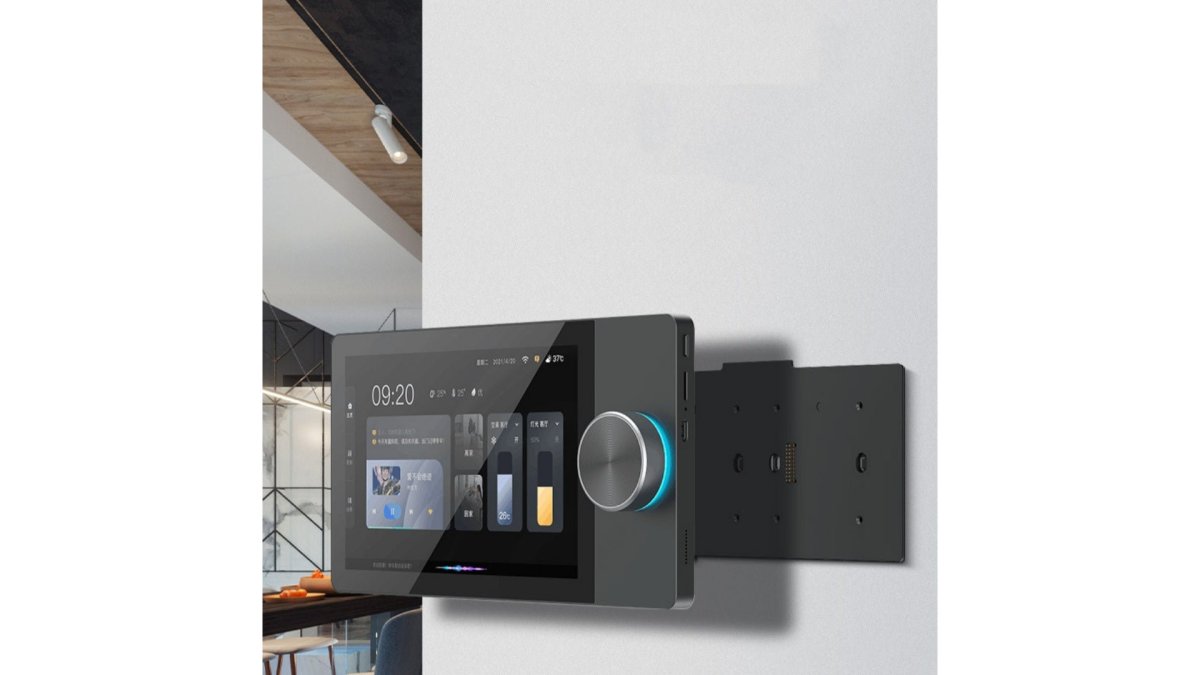
The Graffiti Smart Central Control Home Panel from Mayon Finds ($276.00) serves as a local hub for this setup.
WiFi Smart Plugs – 2-Pack, Alexa & Google Assistant Compatible, Custom →
Local automation requires:
- A central hub that stores rules and processes automation locally
- Devices that communicate directly with the hub (not just through cloud services)
- A home network that connects all devices
- Configuration done once, not managed through apps
Many modern smart home devices still require cloud connectivity for app control, but they can operate locally for basic functions. A smart plug can turn on and off based on a local schedule, even if the cloud service is down.
The trade-off is that you lose remote access. You can't control your home from outside your house without internet. But for true automation, you don't need to. Your home handles it automatically.
Building Your App-Free Setup: Step by Step
This is where theory becomes practice. Follow this path to build automation that runs without app interaction.
Step 1: Choose Your Core Devices
Start with the foundation: one central hub and 2-3 automated devices.
Your hub is the brain. It stores schedules, processes sensor triggers, and coordinates devices. The Graffiti Smart Central Control Home Panel works as a dedicated hub with a physical screen for configuration and monitoring. Alternatively, some smart home systems use a dedicated bridge or hub device.
Your first automated devices should handle the most impactful routines:
- Lighting, Smart bulbs or smart plugs controlling lamps (highest visibility, easiest to notice)
- Climate control, A smart thermostat or smart plug controlling a space heater (comfort impact)
- Security, A motion-triggered camera or door lock (peace of mind)
Start with one category. Get it working perfectly. Then expand.
The WiFi Smart Plugs ($24.00 for a 2-pack) are an ideal starting point. They don't require a hub. They work independently on your WiFi network. You can add them to your system immediately and configure schedules right away.
Step 2: Configure Schedules and Triggers
Once devices are installed, configure their automation rules.
For schedules, access the device's configuration interface (usually a web page or physical panel, not an app):
- Log into the device's local interface using a web browser
- Navigate to the schedule section
- Set recurring schedules for each device (lights on at 6 PM, off at 11 PM; thermostat to 68°F during day, 62°F at night)
- Save the configuration to the device's local storage
For motion-triggered automation:
- Install motion sensors in key areas
- Configure the sensor to trigger specific devices (motion detected → turn on light)
- Set a timeout delay (light stays on for 10 minutes after last motion detected)
- Save the rule to your local hub or device
For occupancy detection:
- Install occupancy sensors in rooms where people sit still
- Configure the sensor to maintain lights while occupied, turn off after empty for 15 minutes
- Test the sensitivity and adjust as needed
Write down your configuration. Store it somewhere accessible. If you need to reconfigure after a power outage or reset, you'll have the details.
Step 3: Test Manual Overrides and Fallbacks
Automation fails sometimes. Your setup needs manual overrides and fallback options.
Test each scenario:
- Power outage, Unplug your hub and devices. Verify they work on battery backup or recover correctly when power returns.
- Internet down, Disconnect your WiFi. Confirm local automation still works (schedules still run, motion sensors still trigger lights).
- Manual override, Press the physical button on a device while automation is running. Confirm the button takes priority over automation.
- Device failure, Unplug one device. Verify other devices still function and automation continues.
For each device, know:
- How to operate it manually (physical button, switch, or panel)
- What happens when power is lost (does it resume the last state or default to off?)
- Whether it has battery backup
- How to reset it if it fails
Document this information. Create a simple guide: "If the lights stop working, press the manual switch on the plug. If the thermostat stops responding, check the hub display."
Fallback options include:
- Traditional manual controls (physical switches, thermostats you can adjust by hand)
- Battery-powered backup devices for critical functions
- A second hub or device for redundancy in essential areas
- Knowledge of how to operate everything manually
Common Mistakes to Avoid
Most people build smart home systems wrong because they prioritize app convenience over actual automation.
Mistake 1: Buying devices that require app control for basic functions. Some smart devices won't turn on or off without the app. Avoid these entirely.
Mistake 3: Setting up too much automation at once. You configure 20 different schedules and rules, then something breaks and you can't remember what you set.
Mistake 4: Forgetting manual overrides. You set up motion-triggered lights, but there's no physical switch to turn them off manually.
Mistake 5: Ignoring privacy and security. Some smart home systems send all your activity data to cloud servers.
Mistake 6: Not testing failure scenarios. Your automation works great when everything is connected and online. But what happens during a power outage?
Automating your home without apps means building a system that works independently.
Frequently Asked Questions
Can you automate a home without using smartphone apps?
Yes. You can automate your home using physical controls, built-in device schedules, motion sensors, and local hubs that operate independently of apps. Once configured, devices like smart plugs and thermostats run on their own schedules without requiring phone interaction. Motion sensors trigger lighting and other routines automatically. Physical wall switches and manual overrides ensure you always have control without reaching for your phone.
What home automation works without Wi-Fi or an internet connection?
Local home automation without internet relies on Bluetooth, Zigbee, or Z-Wave protocols and a local hub or central control panel. The Graffiti Smart Central Control Home Panel ($276.00) creates a local network for compatible devices, allowing them to communicate and execute routines without cloud connectivity. This setup prioritizes reliability and privacy, since your automation system operates entirely within your home.
Can motion sensors automate lights without a phone?
Yes. Motion sensors trigger lighting automation automatically when occupancy is detected. Once configured during setup, the sensor and light communicate directly through a local hub or wireless protocol. Lights turn on when motion is sensed and turn off after a set period of inactivity, all without app involvement. This is one of the most reliable app-free automation routines for hallways, entryways, and bathrooms.
How do you set up home automation yourself without needing to troubleshoot for hours?
Start with simple devices like WiFi smart plugs ($24.00 for a 2-pack) that work out of the box with custom schedules. Configure one-time schedules directly on the device using its physical interface or a single setup session. Use a central control panel like the Graffiti Smart Home Hub ($276.00) to coordinate multiple devices. Include manual overrides and physical switches so automation never traps you without control. Test each routine during setup to catch issues before relying on it daily.